

GBIF species observations to geodata#
Launch the tool: https://toolbox.nextgis.com/t/gbif_download
Downloads species observations from the public GBIF API for a given bounding box, optionally filtered by taxon (scientific name), kingdom, quality grade, wildness and observation date. Hard limit: 10 000 records per run.
Inputs:
Bounding box - draw your area of interest on the map or enter coordinates in decimal degrees (West, South, East, North in WGS84).
Country code (ISO 3166-1 alpha-2) - two-letter country code (e.g. ‘DE’, ‘FR’, ‘US’). Filters by the country where the occurrence was recorded. Combined with ‘Bounding box’ if both are set (AND).
Taxon name - scientific name (e.g.
Bubo bubo). Leave empty to download all species in the area.Kingdom. Select one iconic taxon group (Birds, Plants, Insects, Fungi, Mammals, etc). Combines with ‘Taxon name’ if both are set. Options:
Animalia
Archaea
Bacteria
Chromista
Fungi
Plataea
Protozoa
Viruses
Record type - which categories of GBIF records to include. ‘Wild observations & specimens’ (default) covers the typical ecological use case — it excludes zoo/botanical-garden (LIVING_SPECIMEN) records.
Observation date from - Lower bound of observation date. Format: YYYY-MM-DD.
Observation date to - Upper bound of observation date. Format: YYYY-MM-DD.
Only with photo - restrict to records that have at least one image attached (mediaType=StillImage). Default: off.
Only commercially reusable licences - restrict to records licensed CC0 or CC-BY (excludes CC-BY-NC). Default: off (all licences).
Exclude records with geospatial issues - exclude records that GBIF has flagged with geospatial quality issues (hasGeospatialIssue=false). Default: on.
Outputs:
GeoPackage with one point layer ‘observations’;
Report;
JSON.
Example:
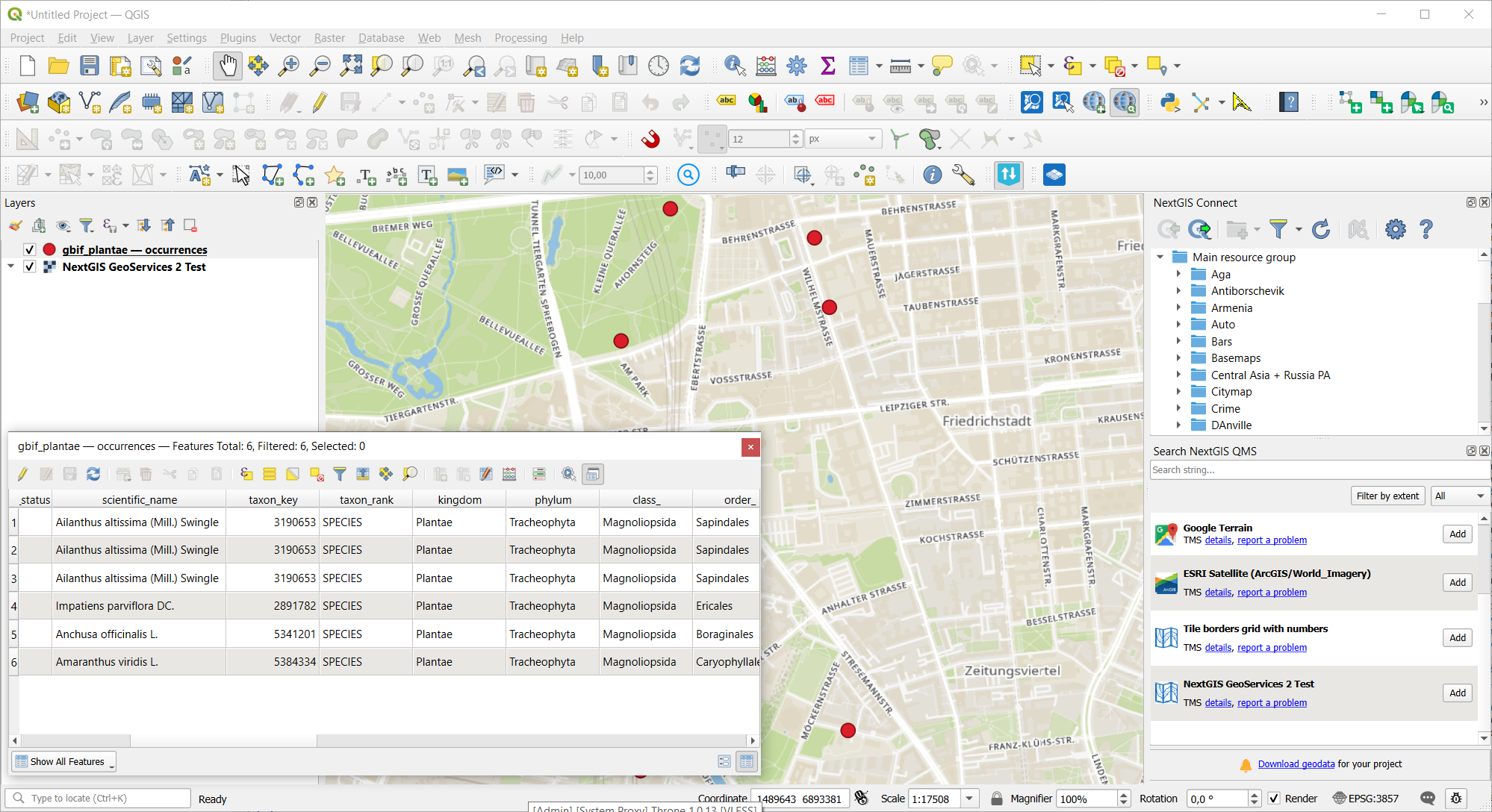
Fig. 155. Example output file opened in QGIS#
Try the tool in action
Click on the Demo button above the tool form. The fields are filled in with demo values.
Click on the Run button.