

QTiles#
Note
Qt6 compatible. Can be used in QGIS 4
This plugin generates raster tiles from QGIS project for selected zoom levels and tile naming conventions (Slippy Map or TMS).
Raster tilesets like this are used for example in mobile GIS for field work without Internet connection. Packages can be used in NextGIS Mobile, GeoPaparazzi, simple Leaflet-based viewer or MBTiles.
After installation the plugin toolbar is added to the interface. You can turn it on and off in the toolbar list: QTiles Toolbar.
To create a tileset open the QGIS project you want to create tiles from.
Activate the plugin  . In the plugin window you can configure parameters of the tiles:
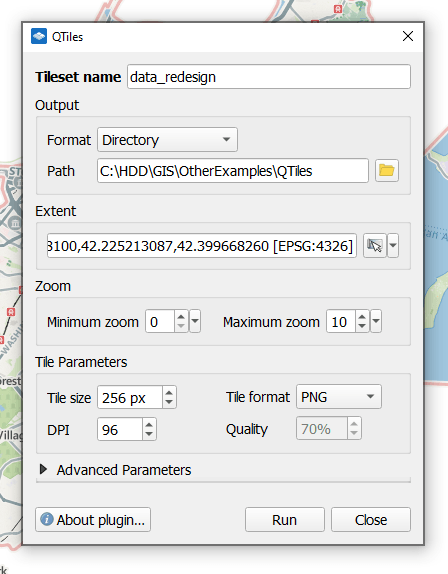
Fig. 869. Tileset parameters#
Required parameters are:
Tileset name - by default the project name is used;
Format - select your output:
Directory - tiles are saved in subfolders;
ZIP-archive;
MBTiles;
PMTiles;
NextGIS Mobile - NGRC file, optimized for use in NextGIS Mobile app.
Path to the target folder;
Extent - you can enter it manually or select one of the options:
 Use current map canvas extent;
Calculate from layer;
Calculate from layout vap;
Calculate from bookmark;
Draw on map canvas;
Extent of visible layers;
Full project extent.
Zoom: minimum (by default it’s 0, the entire world), maximum - enter a number or find the necessary zoom on the canvas and select Set current zoom level from the dropdown menu.
Click Run. The progress bar appears at the bottom of the plugin window.
Additional settings:
Tile parameters, we advise not to change them unless necessary. You can set up tile size, image format (PNG or JPG), DPI, and quality for JPG tiles.
Advanced parameters:
Enable antialiasing (enabled by default);
Render tiles with transparent background (enabled by default);
Render tiles outside layer extents
Enable TMS tile convention;
Enable MBTiles compression;
Write JSON metadata file;
Write overview image file;
Write MapURL file;
Write Leaflet viewer.
See how the plugin works in our video:
Watch on youtube.