

Manage Web GIS layer structure#
Save NextGIS Web vector layer attribute table settings and schema to CSV. Or update table settings from CSV file.
Inputs:
Web GIS address. URL of your Web GIS on NextGIS platform, e.g. https://demo.nextgis.com;
ID of the vector layer. Numbers at the end of the URL of the vector layer resource in Web GIS;
New CSV schema - if you want to modify the layer table, upload CSV file with the new settings or a ZIP-archive with CSV in the root.
Outputs:
CSV file with original field settings;
Or:
Changed layer fields in Web GIS and CSV file with original settings.
For each field of the layer, the following parameters are recorded:
id - field identifier;
keyname;
display_name;
datatype;
typemod;
label_field - marks the field selected for labels;
grid_visibility - marks the fields that are included in the attribute table;
text_search - indicates if the text search is allowed for the field;
lookup_table - if a lookup table is connected to the field, its resource ID is indicated.
More on vector layer field settings.
If you want to use the tool to modify the fields:
Use the tool to generate CSV of the current settings.
Open the file in Excel or text editor and make the changes. Settings that can be edited with the tool:
keyname - must not be empty or the same as another existing field, use only simple latin characters, numbers and underscore;
display_name - must not be empty or the same as another existing field;
label_field - only FALSE or TRUE, only one field can be marked “TRUE”;
grid_visibility - only FALSE or TRUE;
text_search - only FALSE or TRUE.
Launch the tool: https://toolbox.nextgis.com/t/ngw_layer_schema
Example:
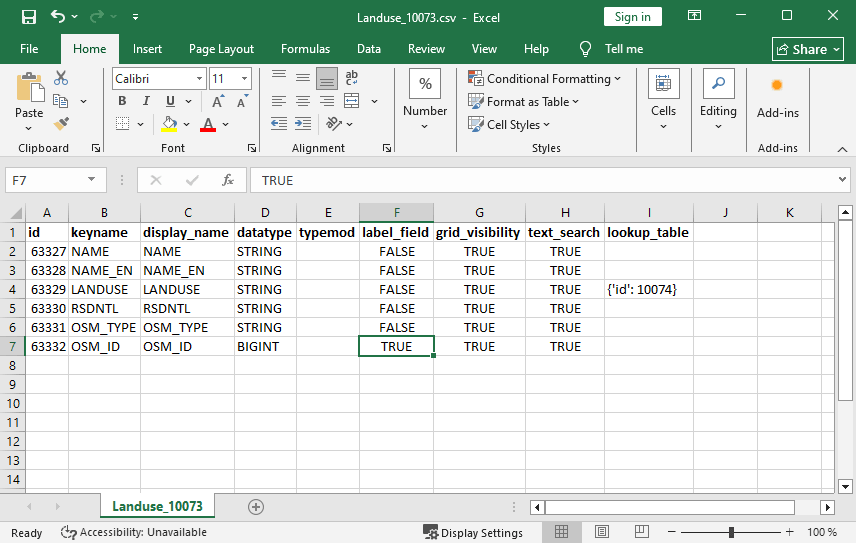
Fig. 208. Example output for Landuse layer: OSMID field is chosen as label, a lookup table is added to the LANDUSE field#
Try the tool in action by downloading our example:
Try the tool in action
Click on the Demo button above the tool form. The fields are filled in with demo values.
Click on the Run button.