

Update plugins#
Open QGIS and in the menu bar select Plugins ‣ Manage and install plugins.
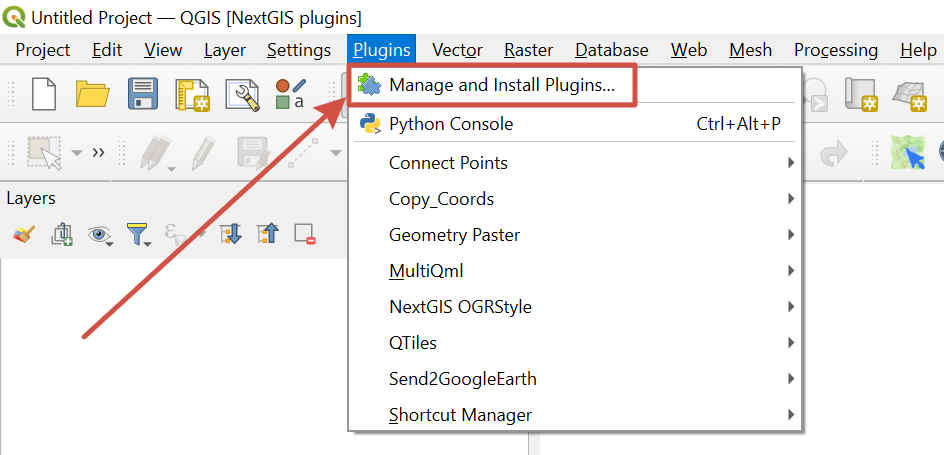
Fig. 823. Selecting plugin manager#
Go to the Installed tab. Plugins that have updates available are marked in bold.
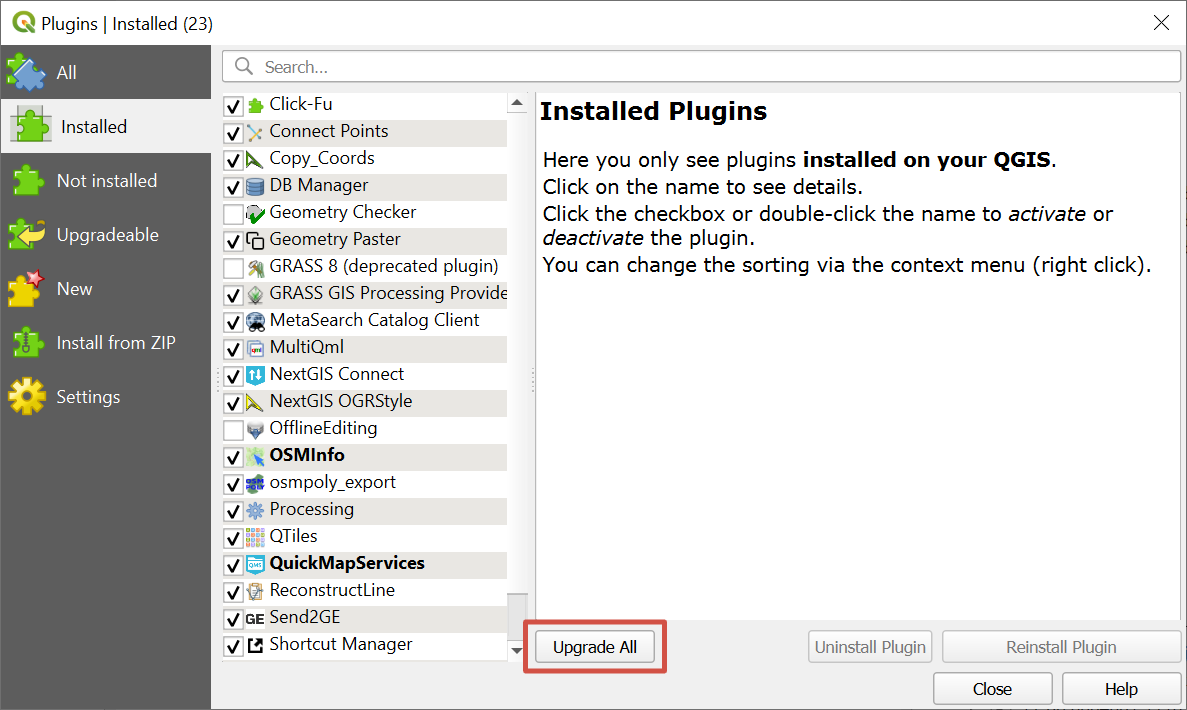
Fig. 824. Managing plugins#
To install all available updates, press Upgrade all. Make sure that the plugins are activated (ticked).
Check installed verison of a plugin#
Open QGIS and in the menu bar select Plugins ‣ Manage and install plugins.
Go to the Installed tab. Click on the plugin in the list or star typing its name in the search bar and select the plugin from the search results.
On the right you’ll find the plugin information.
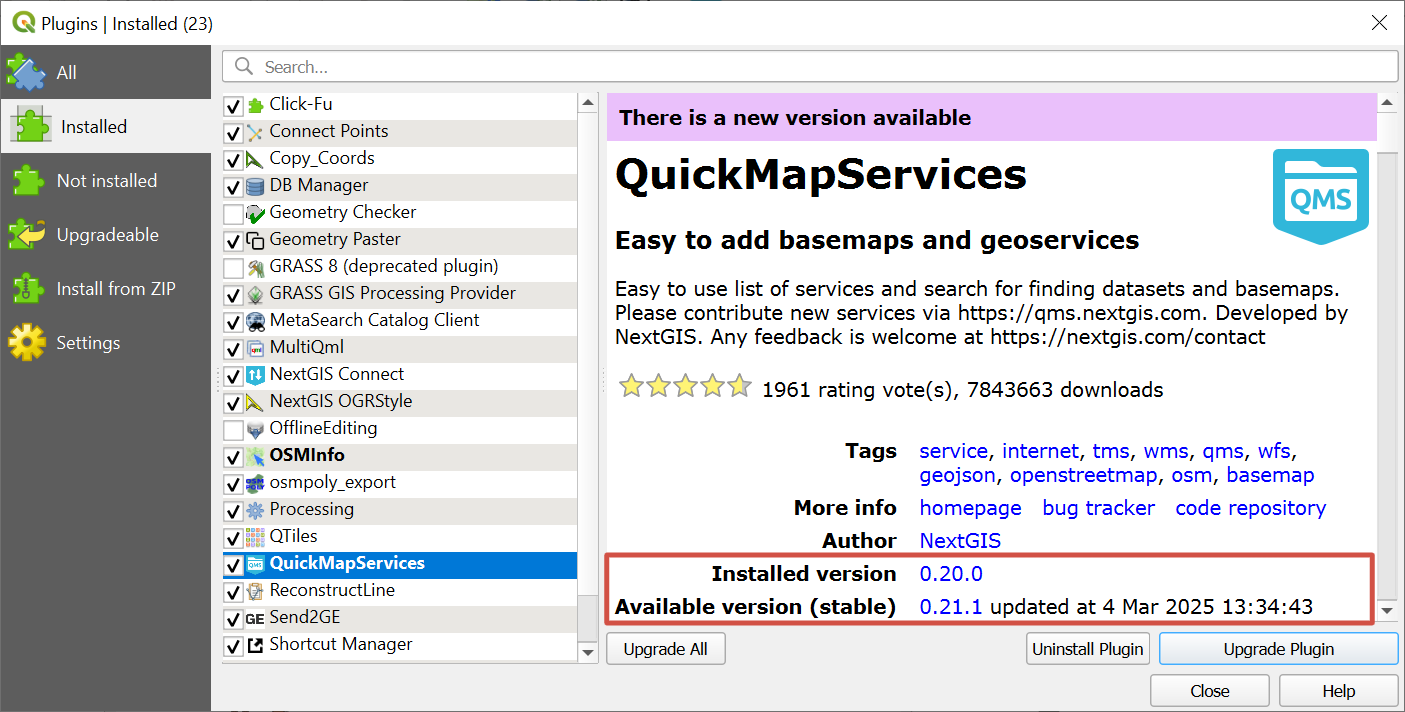
Fig. 825. Checking plugin version#
In the About panel you’ll find Installed verison and Available version (stable) with date and time of its release. Also, if an update is available, there will be a message at the top of the panel.