Use via MCP#
You can add NextGIS Toolbox MCP server to you AI agent settings and solve your geospacial tasks directly in chat.
To get your personal MCP link log in at toolbox.nextgis.com and copy the link from the Settings page. The link is formed like this:
Where APIKEY is replaced by your personal access key.
Add this link to your AI-client. Exact settings depend on the LLM you use.
Note
If you don’t find your favorite LLM in our list, try adding the MCP link to it and share instructions with us, we’d gladly add it to our documentation.
Enter prompts as usual.
Example prompts:
I need height above see level of the Bankya village from ALOS. Use MCP.
Compute NDVI for Blanes, Spain for October 2024 using Sentinel-2 imagery. If multiple satellite tiles cover the area, just pick one (scene) arbitrarily. Use MCP.
The capabilities of working through MCP are constantly expanding; currently, the models that have been tested can independently retrieve data from external sources, launch tools to process that data, and create Web Maps. ChatGPT can also upload files from your device to process them with Toolbox MCP.
ChatGPT (web)#
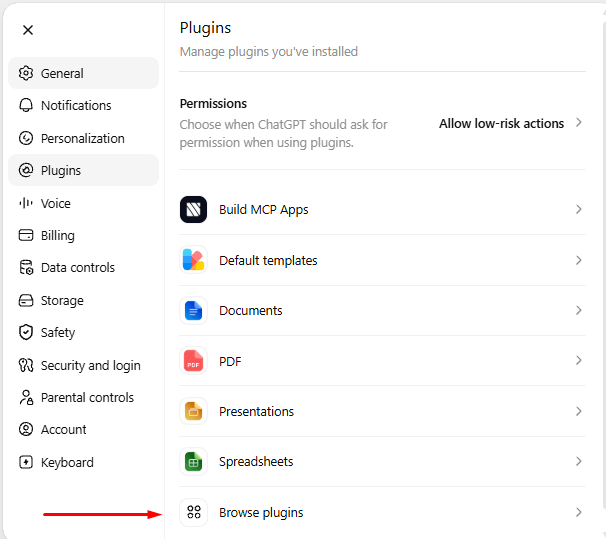
Click on the profile and select Settings –> Plugins –> Browse plugins.
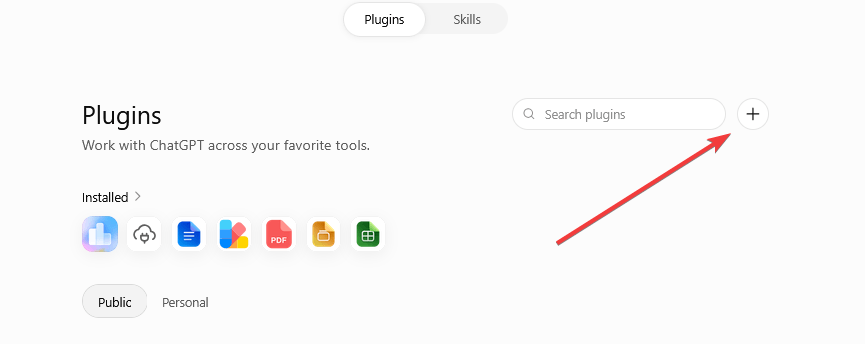
Click on the + next to the search in the top right corner.
Turn on Developer mode.
Click Create app and set up:
name, for example “Toolbox MCP”.
Enter MCP link to the Connection field.
Authentification: No auth.
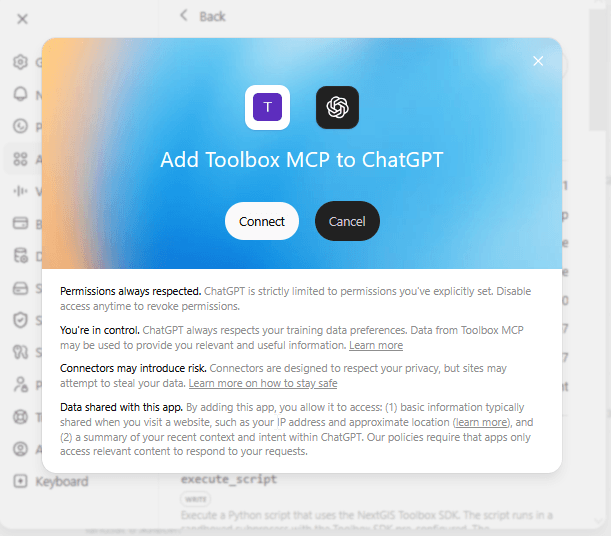
Accept all the warnings.
Note
You need Plus subscription and above.
Claude (web)#
Go to the settings and click Customize (or the settings icon) in the left sidebar, then select Connectors.
Add a new connector — click + and select Add custom connector. Users with Free plan can only have one custom connector.
Enter the URL of the NextGIS Toolbox MCP server.
Click Add. The connector appears in the list of connected services.
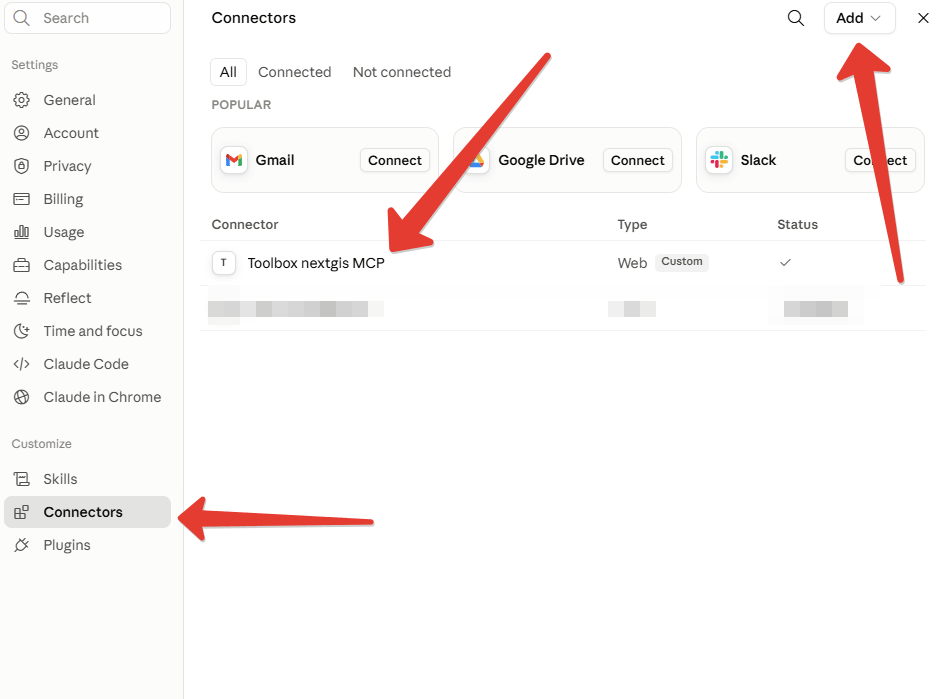
Toggle the connector in chat. Open the conversation, click + at the bottom of the window → Connectors and toggle NextGIS Toolbox.
After that Claude can run NextGIS Toolbox tools (search for satellite images, calculate NDVI etc) directly in chat.
Claude Code#
Use Terminal inside the project to which you want to enter MCP to run a command:
claude mcp add --transport http toolbox-mcp https://mcp.toolbox.nextgis.com/mcp?api_key=APIKEY
Then run claude and type a command /mcp. In the list of Local MCPs you’ll see toolbox-mcp.
Use it.
To run it globally, enter this command:
claude mcp add --transport http --scope global toolbox-mcp https://mcp.toolbox.nextgis.com/mcp?api_key=APIKEY
Cursor IDE#
Open Cursor Settings.
In the left menu select Tools & MCPs.
In Home MCP Servers section click New MCP Server (card with a plus icon “+” labeled “Add a Custom MCP Server”).
A file called mcp.json opens. Enter server parameters manually.
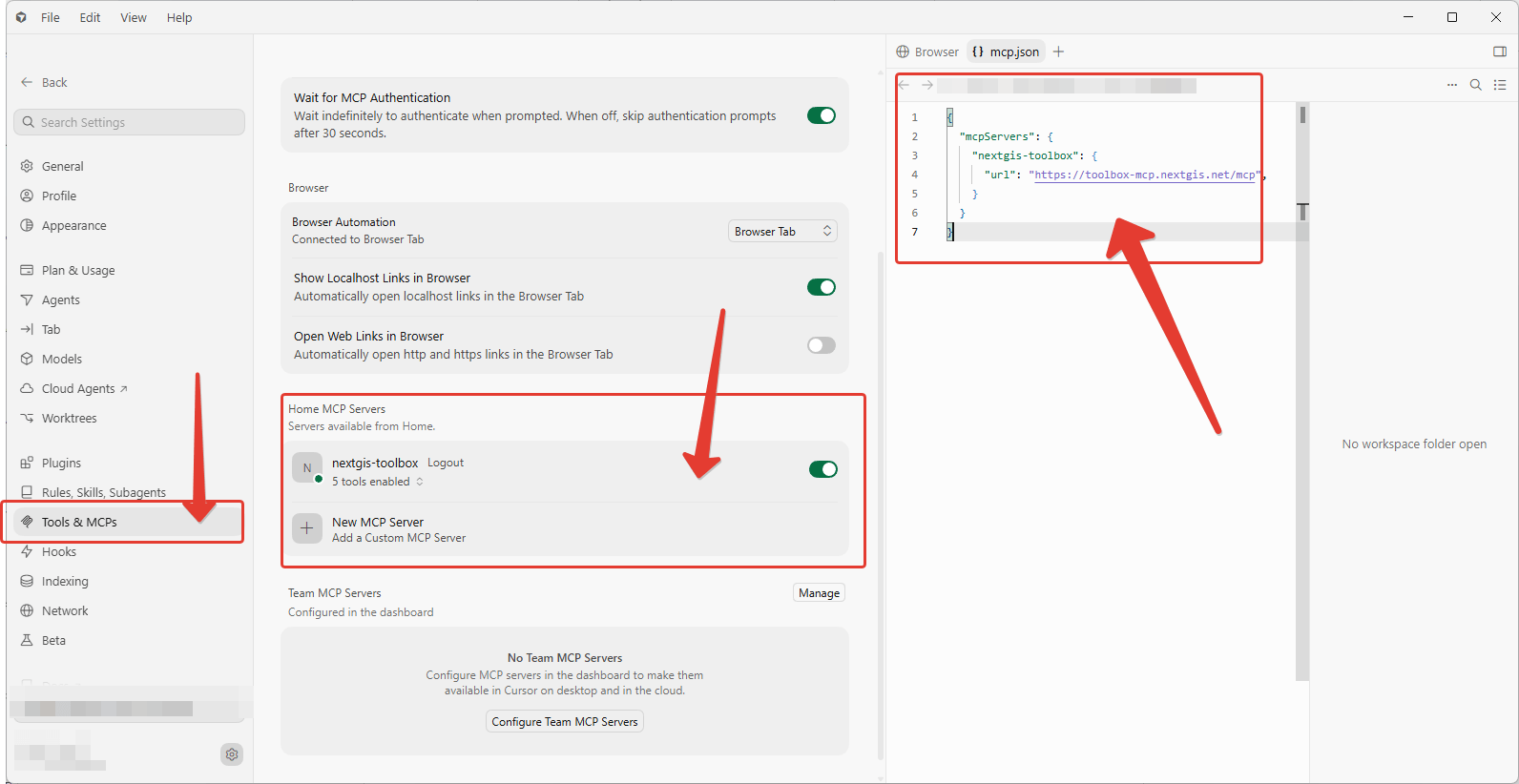
Save. The new server is added as a card in the Home MCP Servers list.
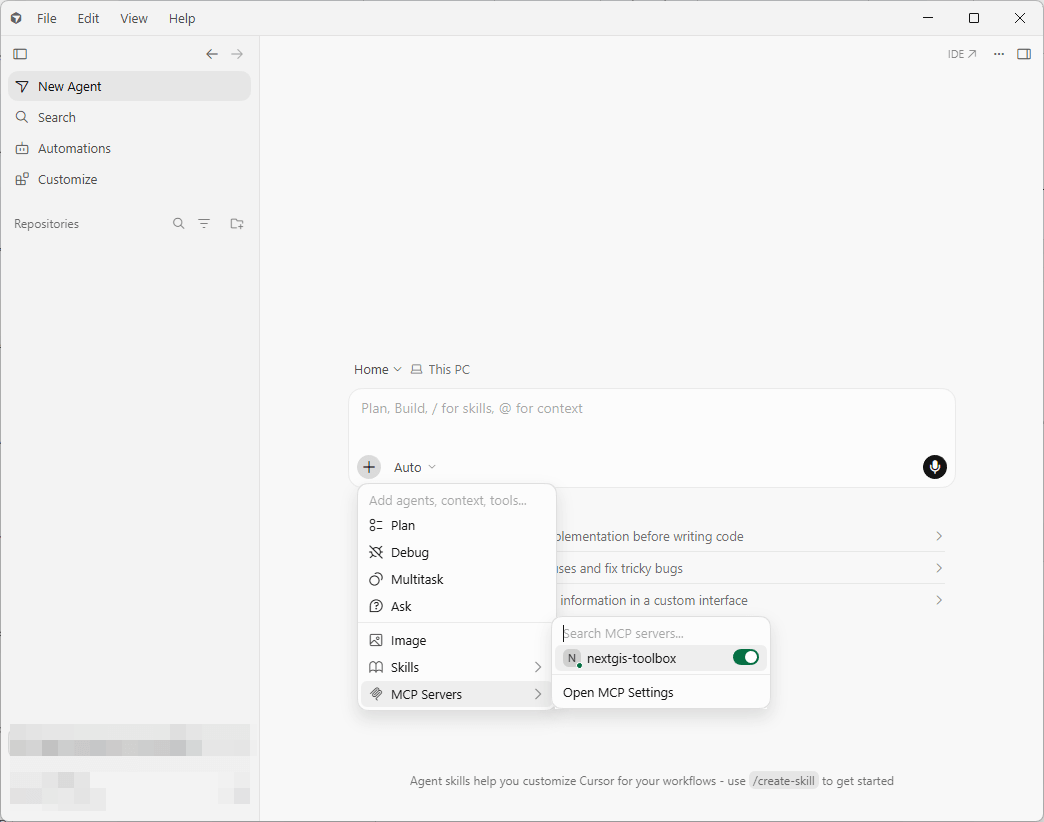
When you enter prompts make sure that the MCP server is enabled (see screenshot below).