

Get the layer historical state#
Get a GPKG file with the state of the NextGIS Web versioned vector layer at a certain point in time or at the time of a certain version.
Learn more about versioning.
Inputs:
Web GIS address - URL of your Web GIS on NextGIS platform, e.g. https://sandbox.nextgis.com, NextGIS ID and password;
Layer ID - numbers at the end of the vector layer URL in NextGIS Web;
Select the version of the layer you wish to download using one of the options:
Timestamp - indicate a moment in YYYY-mm-dd HH:MM:SS format, the tool will automatically pick the corresponding version. Use this field OR the ‘Version ID’ field.
Version ID - ID of the target version, you can check the number of the current version via API. Enter an integer equal or below the current version number. Use this field OR the ‘Timestamp’ field.
Outputs:
GPKG file with historical layer data.
Launch the tool: https://toolbox.nextgis.com/t/ngw_layer_historical_state
Example:
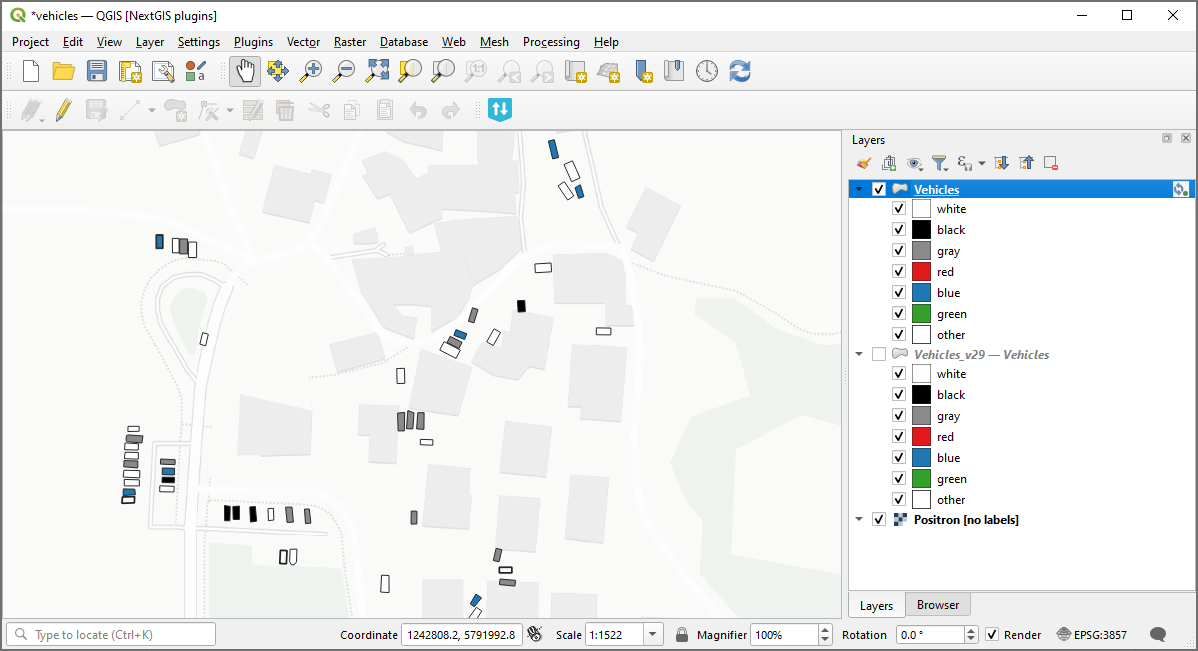
Fig. 206. Example input: current state of the Web GIS layer added to QGIS via NextGIS Connect#
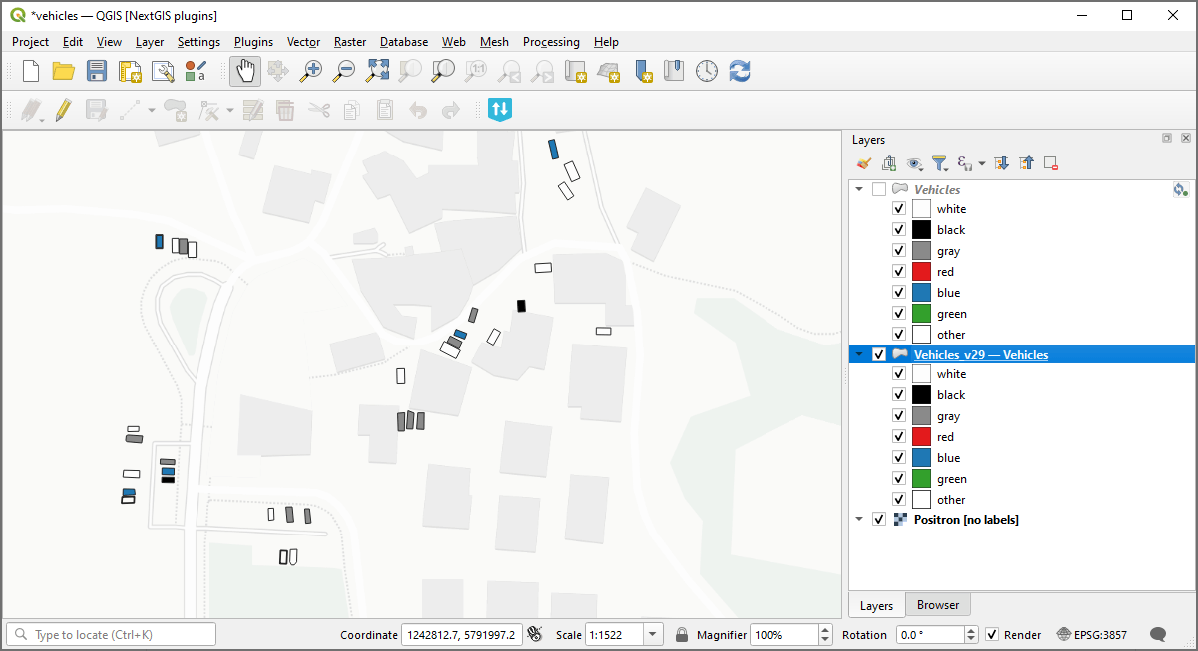
Fig. 207. Example output: version 29 of the layer#
Try the tool in action
Click on the Demo button above the tool form. The fields are filled in with demo values.
Click on the Run button.